
This is an optional feature available in your account settings. What you'll need to start:
- An authenticator app installed on your device (usually a phone). Example free authenticator apps available in your iOS or Android app store: Google Authenticator, Authy, Microsoft Authenticator.
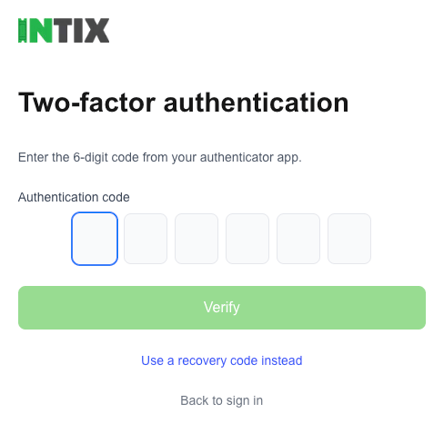
Once 2FA is enabled, you'll need both your password and a 6-digit code from your authenticator app to sign in.
You can disable 2FA anytime. Jump to Disable 2FA.
Enable Two-Factor Authentication (2FA)
Login to INTIX:
AU - intix.com.au
NZ - intix.co.nz
UK - intix.co.uk
US - intix.com
- My Account > My Settings > Two-Factor Authentication > Enable 2FA
- Enter your INTIX account password
- Open your authenticator app and scan the QR code displayed in your INTIX account (easiest and quickest way)
OR,
Copy the key from underneath the QR code in your INTIX account and go to your authenticator app to set up a new code generator, and paste the key when prompted (backup method) - Generate recovery codes. Save these codes somewhere safe (but handy). These are used when you don't have access to your authenticator app, and you need to use one of your 10 one-time-codes to log in instead.
Logging into INTIX going forward looks like this!
Disable Two-Factor Authentication (2FA)
- My Account > My Settings > Two-Factor Authentication > Disable 2FA
- Enter your INTIX password and the 6-digit code from your authenticator app
(OR, use one of your Recovery Codes)
Questions? Email help@intix.com