
Super Admins
What: Super Admin Checklist
When: 4 days prior to the event
Who: Super Admins who are selected to receive notifications
This is a reminder email with important details to verify in advance. Even if you're well into a season, details can very easily be overlooked. Take every precaution to avoid stress on event day!
Access Control: if your tickets aren't enabled for access at the gates - they won't scan! It's a simple tick box that takes just a second to check.
Apps and devices: are they up to date? Turn on devices, open scanning and selling apps, and check the app stores for updates.
Event Roles: Do your selling and scanning staff have login access to the event?
Control who receives these emails:
- Organisation Settings > Team Management > Notifications (select and de-select Super Admins)
- You will also receive an email notification advising that the Attendee & Audience emails will go out in 48 hours. This is a prompt to manage whether you would like them to be sent (instructions below).
Attendees
What: Attendee Reminder
When: 2 days prior to the event
Who: Ticket holders to this event
This includes:
- Ticket: a reminder to have their ticket ready at the gate
- Resale: to check if resale is available should they no longer be able to attend
- Journey Planner to event venue via Google Maps
Control whether this email is sent:
- Your event > Order Options > Order Form (select and de-select Reminder Email)
Audience
What: Reminder
When: 2 days prior to the event
Who: Customers in your Audience who have not purchased a ticket
This is a simple reminder "Hey! Do you want to grab a ticket?"
Control whether this email is sent:
- Your event > Tickets > Settings (select and de-select Audience Marketing Email)
NOTE: Content of the automated emails are not customisable. You can customise your own communications using INITIX's free marketing tools:
- Create eDMs
- Send Push Notifications
- Email Attendees which will reach all current ticket holders in a specific event
Preview Notification Emails
You can click through different automated emails to see the content in your brand colour, and how it’ll land in customer inboxes.
- Organisation > Marketing > tab at the top alongside Audience Segments, Campaigns...
- Event > Marketing > list in side menu alongside Tracking pixels, Promo codes...
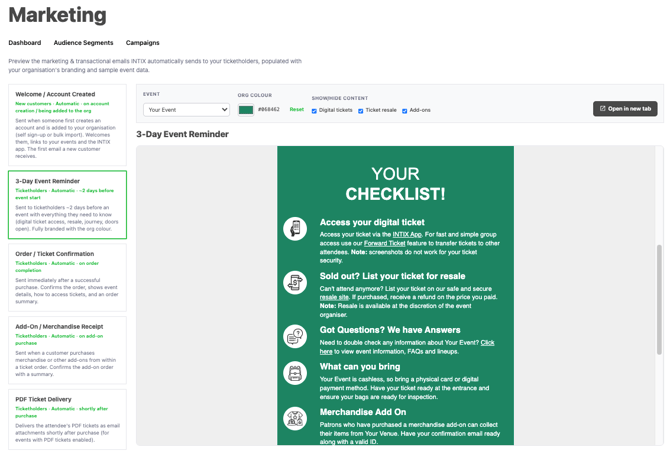
Have a play aound!
-
You can change the colour there to see how it displays in another colour (default: your Organisation's colour). This doesn’t change your Org colour - it’s just a preview. If you actually want to change it, you’ll need to change it in Settings.
-
Show/Hide content - again, you’re not actually including/excluding content - what it’s saying is if you have add-ons, this icon will show, or if you have resale enabled, this icon will show.
All communications are fully PCI compliant and include unsubscribe options for the receiver. Customers can also change their communication preferences when logged in to their INTIX account at any time.
Need help? Contact your Account Manager or email help@intix.com