
Get started!
Login to INTIX:
AU - intix.com.au
NZ - intix.co.nz
UK - intix.co.uk
US - intix.com
- Enter Event Title
- URL appears automatically - at this stage you can manipulate the URL string
- Type in Venue*
- Select your Time Zone and Currency
- Enter Event Dates and Times
- Save & Continue
*Venue - if your venue is not on the list: click Add Venue, enter details in all fields, exact address, latitude and longitude of the location, then click Create Venue. See our guide on how create a venue, as well as how to find the longitude and latitude coordinates here.
Dashboard
Your Event has now been created and has opened up on the Dashboard page. You can follow the checklist shown to continue setup, or use the menu items on the left to fill in the required information as detailed below.
This is where you will find your Event URLs, Organiser Page URL and Event QR code.
- Your Ticketing URL - takes the customer directly to the ticket page
- Your Event Information URL - takes the customer to the Event Information page displaying the Event Banner image and Event Details
- Organiser URL – takes the customer to your Organiser page, where all publicly available live events and your membership site (if applicable) are displayed.
-
Event QR Code - takes the customer directly to the ticket page
-
Right click on QR Code to Save Image As
-
Print and share on socials
-
Basic Info
- Check event information, here you can edit Event Title, Dates, Times and Venue
- You can not edit URL or Time Zone
Event Details
- Event Banner Image: Specs 2160 x 1220px JPEG or PNG, no larger than 1MB
- Event Description: detail what the event is about
Tickets
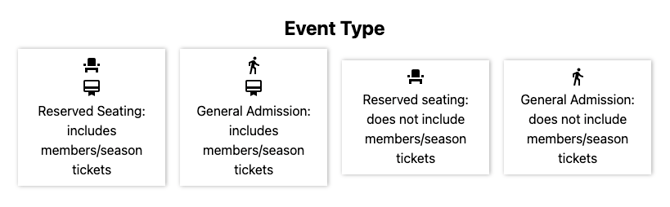
When selecting your Event Type you have the options to select the following:
-
Reserved Seating: includes members/season tickets - automatically includes all members as well as ability to sell single event tickets and general admission
-
General Admission: includes members/season tickets - automatically includes all members as well as ability to sell single event tickets
-
Reserved Seating, does not include members/season tickets - single event tickets only as well as the ability to sell general admission
- General Admission: does not include members/season tickets - single event tickets only
 Select the current/relevant seating map
Seating Map must have been created by INTIX prior to creating your event to draw the relevant information for your venue, this includes General Admission events without members.
Create Tickets
-
General Admission, refer to this article: Creating Tickets for your event
- Reserved Seating, refer to this article: Create Ticket for Reserved Seat Event
Add Ons
-
collect donations or sell merchandise
- refer to this article
Manage Attendees > Event Access Control
-
Control which ticket types can enter through certain gates
- If left unselected, tickets will not be able to be scanned
Order Options > Order Form
-
Custom Question - refer to this article
-
Check Out time limit
-
Ticket Delivery Options
-
Special Instructions
Order Options > Order Confirmation
-
Confirmation Page
After registering for your event, attendees will see your onscreen message until they navigate away from the page. You can include special instructions, sponsor imagery or other useful information here. - Email Confirmation
After registering for your event, attendees will recieve an email. You can include special instructions, sponsor imagery or other useful information here.
Order Options > Waiver
-
During purchase/registration your customers will have to agree to this waiver before proceeding.
Payment & Tax > Payment Options
-
- Absorb/Pass On Ticket Fees
- Absorb/Pass On Transaction Fees
- Offer Afterpay
- Offer Zip Pay
- Connect Stripe - Connecting Stripe for access to your funds
Marketing
-
Tracking Pixels - refer to this article
-
Promo Codes - refer to this article
-
Affiliate Marketing - refer to this article
Additional Event Info > Who's Performing
-
Including Artist Lineups displays on your Event Page cross promotes each artist/team and can help provide more information about your event as well as providing more ways to find the event on artist searches.
Additional Event Info > FAQs
-
Including FAQs in your event information is recommended because it helps answer common questions upfront, reducing customer uncertainty and support enquiries.
View Your Event in Draft Mode
You can view your event setup all the way through to checkout; however, transactions can only be completed once the event is live.
-
Go to the Dashboard
-
Scroll down to Your Links and click the Event URL
-
Publish Event - refer to this article
NOTES: Can be edited vs cannot be edited after event creation:
Can NOT be edited:
- URL
- Organiser
- Currency
- Timezone
- Pass on/absorb fees
CAN be edited:
- Event title (but keep in mind the URL won't be updated)
- Banner image
- Venue
- Event Contact Email
- Event Dates and Times (and door times)
- Ticket prices and availability dates/times
- Ticket capacity
- Ticket delivery option
- Event Description and Confirmation Email
Questions? Email your Account Executive or help@intix.com