
In this article:
Log in to your INTIX Account
AU - intix.com.au
NZ - intix.co.nz
UK - intix.co.uk
US - intix.com
Event Links
1. Host An Event > Select Event > Dashboard
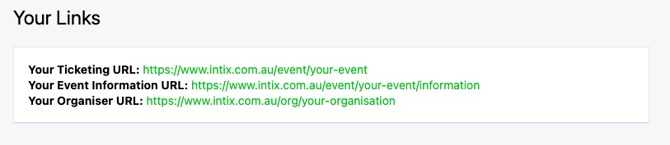
2. Scroll down to Your Links
- Your Ticketing URL - takes the customer directly to the ticket page
- Your Event Information URL - takes the customer to the Event Information page displaying the Event Banner image and Event Details
- Organiser URL – takes the customer to your Organiser page, where all publicly available live events and your membership site (if applicable) are displayed.
Event QR Code
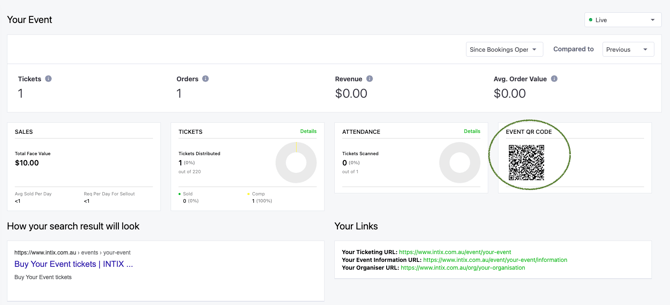
1. Host An Event > Select Event > Dashboard
2. Navigate to Event QR Code on the right of the page
-
Right click on QR Code to Save Image As
-
Print and share on socials
Organisation Link
1. Go to your Organisation > Dashboard, select Copy Organisation URL
Select View Organiser page, where all publicly available live events and your membership site (if applicable) are displayed.

Membership Site Link
1. Go to your Organisation > Membership/Season Tickets > Dashboard, select Copy URL
Select View Site to view your membership site front-end. Note: while off-line, Super Admins can preview it by logging in via My Account on the public view.

Artist Page Link
Including performers, athlete, or team, in your event lineup via Additional Information > Who's Playing, can help drive ticket sales and create hype around your event by increasing visibility in searches.
How does it work?
People will search for events using your team name or the title of the event. If you, the event organiser, add the opposing team in your lineup, or individual performers within your event, customers will come across your listing when searching for the other team or artists.
This gets your event in front of more people, which increases your chances of ticket sales and audience growth! It's quick and easy.
If you are interested in sharing your Artist page link, contact your Account Executive who will be able to assist you.
Privacy Setting
If you are not wanting your event to be displayed to the public, navigate to Privacy Settings > Privacy and select Private from the dropdown.
Here you can allow access:
-
Anyone with the link
-
Only people with an invitation via INTIX
-
Only people with the password
Note: The default privacy setting is Public. You can choose to publish the event as Public or Private at the time of publishing, and this setting can be updated even after the event is live.
Need help, email your Account Executive or help@intix.com