
Add-On purchases are viewed within your Event via Reports > Event Reports > Additional Items Purchased - selecting this tile will export the information in excel where you can filter, sort, and prepare the information to use and record collection.
Login to INTIX:
AU - intix.com.au
NZ - intix.co.nz
UK - intix.co.uk
US - intix.com
2. Go to Host An Event > Tickets > Add-Ons

3. Select Create First Item
4. Enter your item and its first variation title (ie. T-Shirt - Small, scarf, parking pass, meet & greet), the inventory of the first variation. You will add the rest of the variations afterwards.
5. Enter Customer Pays total to calculate Item Price that will include the 5% INTIX fee. Add-Ons always pass on the INTIX fee, even if other fees are absorbed via Payments & Tax.
Note: INTIX fee is waived if you are collecting donations. Enter the word 'donation' in the variation title and the fee with default to $0.
6. Enter Available Units for that variation. Note: Maximum is 100 per variation.
7. SAVE
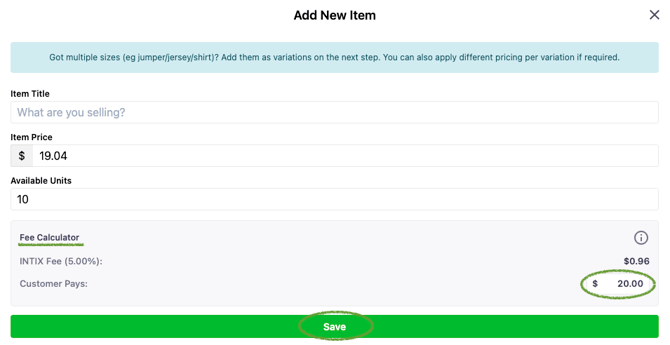
You have your first Add-On!
Now you can:
-
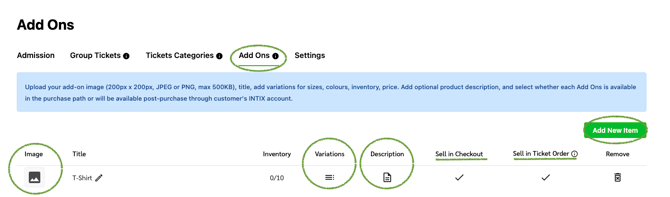
Upload an image by clicking the Image icon.
-
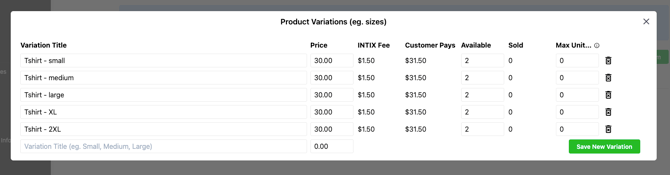
Add additional Variations by selecting the three lines.
-
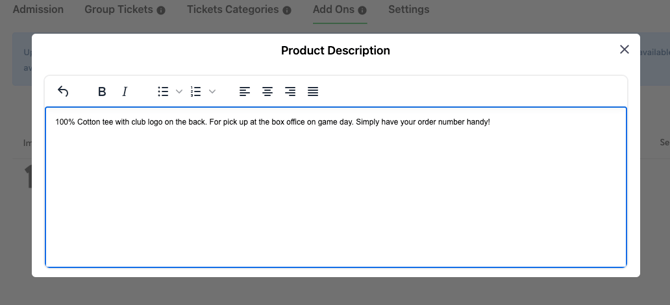
Include a brief Description about the product, service or collection, click the Description icon.
-
Choose to allow or disable Sell in Checkout and Sell in Ticket Order. Check out this article: Purchase an Add-On from within a ticket order
Tick = Enabled, X = Disabled.
-
-
Click the tick to disable the option.
-
Click the X to enable the option.
-
Product Description
Product Variations
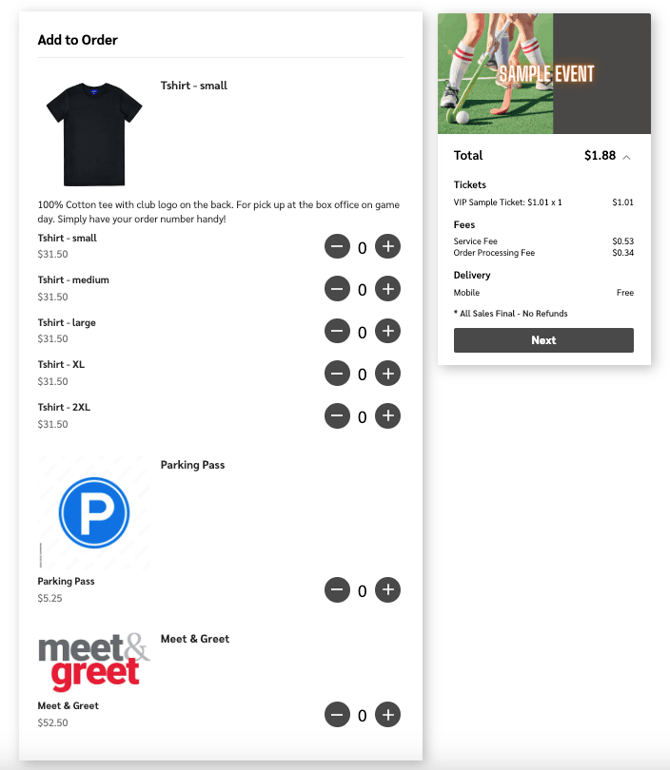
Check the front end to see how it displays to the customer
1. Go to Tickets > View Ticket Page

2. Select a ticket and proceed to Checkout, taking you to the Add-Ons page
3. Choose an Add-On variation
4. Select Next to continue to the checkout page
5. Select Cancel Order
Donations
If you are raising funds for a charity, organisation, or club, INTIX waives fees on any Add-On item with 'donation' in the title. This ensures the full amount goes toward the intended cause.
Tax-deductible receipts: You are responsible for providing any tax-deductible receipts to your customers where requested or required. INTIX is not able to verify the eligibility for tax deductions, and the responsibility and liability rests entirely on the event organiser to manage.
Questions? Email your Account Executive or help@intix.com