
1. Log in to your INTIX Account
AU - intix.com.au
NZ - intix.co.nz
UK - intix.co.uk
US - intix.com
2. Host An Event > Select Event > Tickets
3. Select the three dots on the right of the Ticket Type, select EDIT
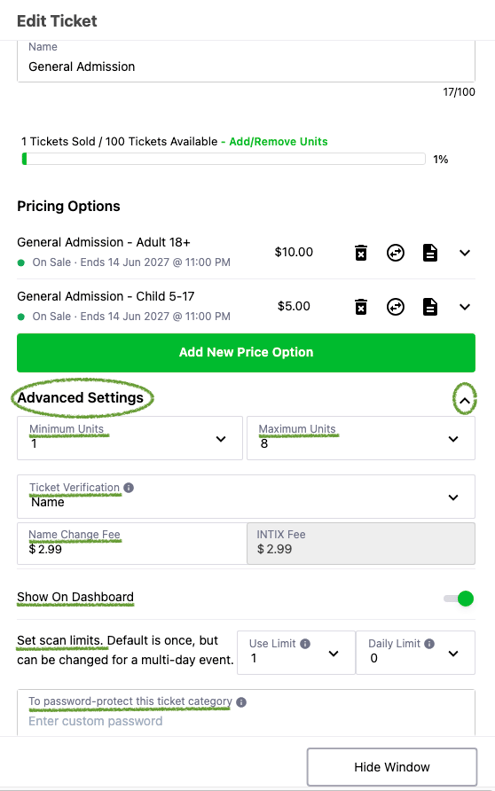
4. Select the dropdown on the right of Advanced Settings to open options
Here you can:
-
Set a Minimum and Maximum ticket purchase per transaction: default is minimum, 1 and maximum 8. Note: The 8-ticket limit ensures emails aren’t blocked or sent to junk, so customers reliably receive their tickets.
- Ticket Verification: default is Name, options are Name & DOB or None. Displayed at checkout.
- Name Change Fee: customise your name change fee, the INTIX fee is set.
- Show On Dashboard: best utilised in the case where you have a lot of ticket types that you don't require to show on dashboard in the back-end.
-
Set a Scan Limit for your event. Default Use Limit is 1, and Daily Limit is 0 this allows the ticket to be scanned once per event. If you have a multi-day event that the ticket is able to be scanned three times, set the Use Limit 3 and Daily Limit 1.
-
Password Protect tickets:
-
Enter your custom unlock code in the password-protect field.
-
Share the direct URL by clicking the Copy icon.
- Refer to this help article: Password protect your tickets
-
- Hide Window to exit
Questions? Email help@intix.com