
Data can be viewed via Members > Member Listing. Use the Column button to select the information preferences you want, then close and select Export. This makes it easy to filter, sort, and prepare your member details.
Pricing Options:
Login atAU - intix.com.au
NZ - intix.co.nz
UK - intix.co.uk
US - intix.com
- Organisation > Membership / Season Tickets > Pricing > Pricing Options
- Navigate to "Add Membership Price Option" (top right of screen)
- Select relevant Membership Category using the dropdown
- Enter Price Point Title ie. Adult 18+
- Enter Price
- Select Price Option Expiry (this can be edited at any point)
- Select Add Price Option
- Select the pencil icon to edit to enter remaining details attached to the price option. Here you can edit the following:
- Price Option Title
- Membership Category that the Price Options is attached to using the dropdown
- Set the price option as Public or Admin Only
- Set the Price Option as Individual or Family/Group. If selecting Family or Group, specify how many memberships are included for example, 2 Adults + 2 Children = 4 memberships
-
- Price - when creating a Family or Group option, this may change the originally entered total price, so be sure to adjust it here.
- Expires - enter the date the price option expires ie. end of the season. This is to ensure that member data goes into 'Past Members' and their membership is expired.
- Valid Date of Birth: Set the start and end date ranges when offering age-specific price options (ie. Adult 18+, Child ages 5–15, or Under 4).
Additional Information:
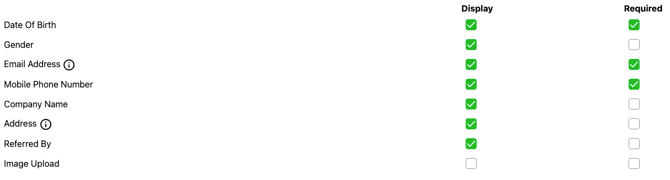
Display | Required: Use the toggles to collect additional information from the member at checkout. This information is exportable via Members using the cog setting icon. (refer to the screenshot below)
- Display: Shows the question, but the customer can proceed with their purchase even if the information is not provided.
- Required: Makes the question mandatory; the customer must enter the information before completing the purchase.
- Email Address: The purchaser will enter their own email by default. Enabling this toggle allows them to assign memberships to multiple individuals when buying more than one, or to purchase on behalf of others.
- Address: By default, the purchaser is required to enter their own address as a credit card security check but this toggle enables them to enter the addresses of each individual member when buying more than one, or purchasing on behalf of others.
Questions? Email your Account Executive or help@intix.com.