
Note: If you require General Admission area in addition to reserved seating, please contact your INTIX account executive ensuring that you provide the following details:
-
Identify where you would like the General Admission to be represented on the seating map
-
Display Label ie. GA (max limit 5 characters)
-
Capacity ie. 400
Create Ticket for Reserved Seat Event
Login to INTIX:
AU - intix.com.au
NZ - intix.co.nz
UK - intix.co.uk
US - intix.com
Go to Host An Event > Event > Tickets
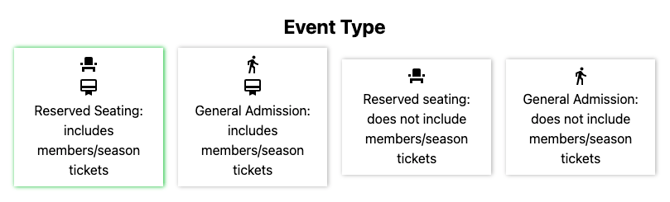
When selecting your Event Type you have the options to select the following:
-
Reserved Seating: includes members/season tickets - automatically includes all members as well as ability to sell single event tickets and general admission.
-
Reserved Seating, does not include members/season tickets - single event tickets only as well as the ability to sell general admission. This will create the event with all seat information referring to the seat map selected which is set up under your Organisation > Seating Map - you will be able to create the Price Options referring to the instructions below which makes all seats available for Single Event purchase.
Reserved Seating: includes members/season tickets
Select the current/relevant seating map
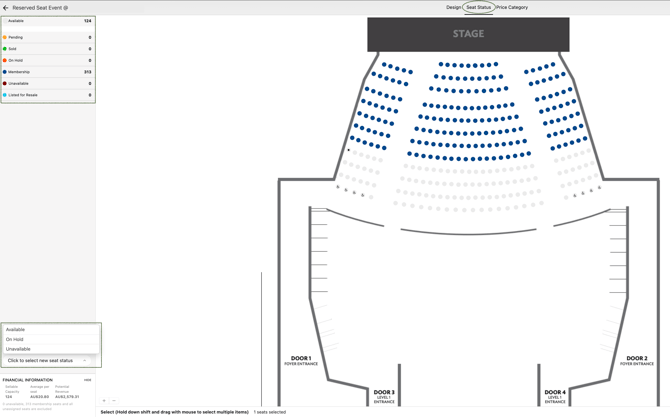
Your seat map will appear on the 'Seat Status' view as default. You will see the legend on the left identifying all seat status options.
Assign or Update Seat Status by selecting the seats and selecting 'Update Seat Status' choosing Available, On Hold, Unavailable.
What is Seat Status?
-
Available: is a seat available to be sold. If a seat has originally been assigned as On Hold or Unavailable, you are able to update the status and assign it as Available
-
On Hold: allows you to allocate tickets in the back-end of your system while the public are not able to select them.
-
Unavailable: is one that is intentionally blocked from being sold or booked in your system.
Price Category, add price options and create new categories
-
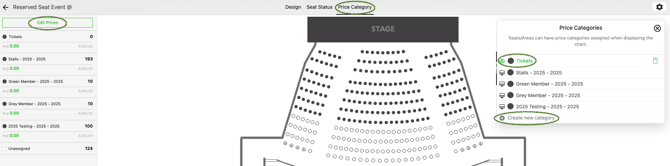
Click 'Edit Prices', select the default "Tickets". You are able to re-name it to suit your event, ie. " Reserved Seating"
- Select 'Add New Price'
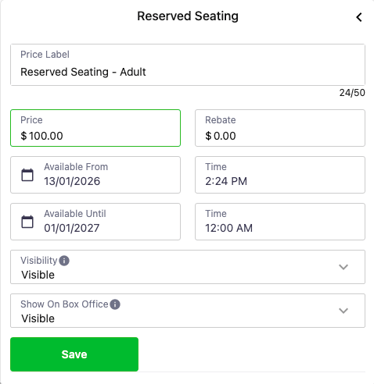
- Enter the Price label ie. Reserved Seating - Adult
- enter price
- enter Available from and until dates
- enter Available from and until time
- select visibility
- select 'Show on Box Office'
- SAVE
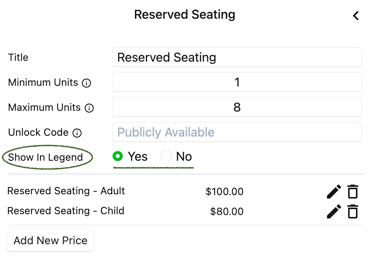
- Once Saved, select 'Yes' or 'No' to Show in Legend.
- Select 'Add New Price' for all remaining price options under the category (ie. Concession, Child, Family)
Family/Group configurations must be completed by a member of the INTIX team, so please notify your Account Executive. If you create a new Family/Group price option in an existing event, ensure it is configured correctly to generate the appropriate number of tickets for the customer and to require selection of the correct quantity of allocated seats. Once configured in the first event, these settings will carry over to subsequent event when duplicating. This is for reserved seating events only.
Creating Price Options within a Price Category
Show in Legend
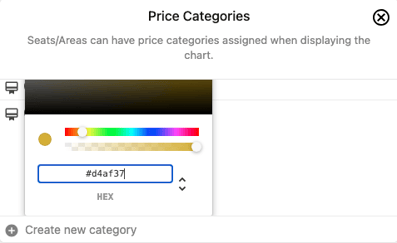
8. Optional: Change colour of seats to visually identify different Price Categories
To customise seat colours, click on the dot next to the price category and enter your preferred HEX code. Use the dropdown arrows to select and enter RGB code if preferred.
Now you are ready to allocate the price categories to all of the seats.
Allocate Price Category to reserved seats
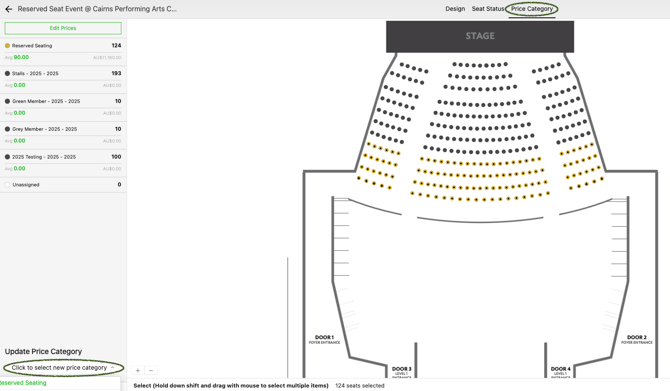
- While in Event > Tickets > Price Category
- Select seats, multiple seats/areas - hold down the shift key and drag using the mouse
- Select Update Price Category > select relevant price category allocating to selected seats
- Repeat step 2 & 3 to allocate all reserved seat Price Categories
The example below shows all Single Event Reserved Seats in HEX colour Gold and the remaining seats in dark grey are assigned to Membership Categories which were assigned within the Membership/Season Tickets > Seat Map.
Password-protecting single event seats
- You may want to offer an exclusive access pre-sale with an Unlock Code
- You may want to offer the Away team the opportunity to purchase seats behind their team's bench
- While in Event > Tickets > Price Category
- Select Edit Prices
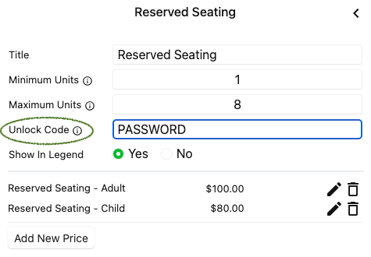
- Select the Price Category to apply the unlock code (in this case "Reserved Seating")
- Create a code of your choosing
- Select to Show in Legend
- Click anywhere to save the update
Questions? Email your Account Executive or help@intix.com