
Example:
- Upgrade from a General Admission ticket to a VIP ticket
- Or a swap - if your customer booked the wrong day or time slot within the same event
The Upgrade function is available to customers when they log in to their INTIX account via the website.
Encouraging customers to use this self-service option can save you and your team valuable time by reducing enquiries around ticket upgrades, cancellations, refunds and reissuing tickets.
To set up the option to upgrade a ticket:
Login to INTIXAU - intix.com.au
NZ - intix.co.nz
UK - intix.co.uk
US - intix.com
-
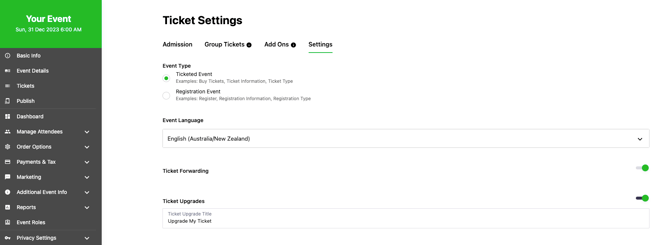
Go to Host An Event > select Event > Tickets > Settings
-
Enable Ticket Upgrades (default text of button reads "Upgrade My Ticket", you may customise this text). This is the button that displays in the customer account when ticket upgrades are enabled and defined.
-
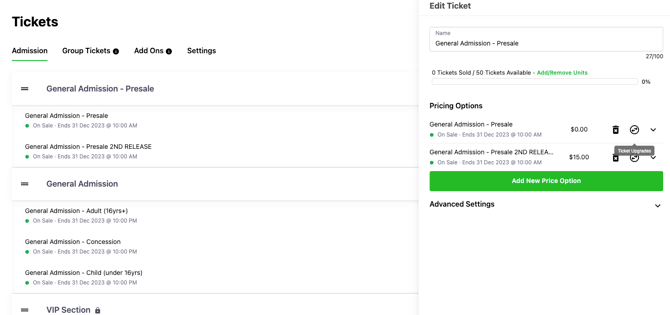
Go to your ticket list, select Ticket Category, and click
 icon beside each ticket pricing option to define which ticket can be upgraded to other prices options.
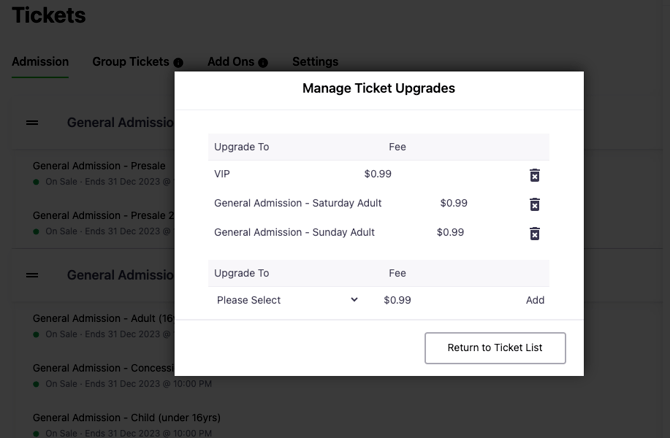
You'll need to map out all tickets to be upgraded and what they are able to be upgraded to, and complete this for each pricing option.
Fees:
-
The INTIX platform will automatically calculate the difference between the tickets to charge the customer, plus applicable fee(s).
-
The INTIX fee for upgrades is automatically added to the transaction ($2.99/ticket).
-
You, the event organiser, may wish to add an additional fee.
-
As the customer will be going through a checkout process again, this incurs a new Stripe transaction fee. This transaction fee is absorbed by you, the client.
-
The customer will be shown the total fee before they enter their card details.
NOTE:
-
A ticket cannot be upgraded to a sold out ticket type. There must be available inventory to make the change.
-
When a ticket is upgraded, the original ticket will add one unit of inventory back in for sale again.
-
You can allow upgrades to special "password protected" ticket types.
Tickets > Settings > Enable "Ticket Upgrades":
Tickets > Pricing Options > Select tickets allowed to Upgrade:
Select tickets to upgrade to:
Customer View
Send this article to your customers: Upgrading your ticket when the option is available to run them through the process.
IMPORTANT:
-
Upgrade value: We suggest only allowing upgrades to ticket types of the same or higher value, to avoid the admin of manually processing partial refunds in Stripe.
-
"Downgrade": To allow a customer to 'downgrade', we suggest refunding them and having them purchase a new ticket.
-
Same-priced ticket: If you don't want to set up Upgrades and a customer wants to change to a same priced ticket you could cancel their ticket and issue a new ticket to them as a complimentary ticket.
In all cases, these are your customers and you decide what they can and can't do regarding upgrades, changes, cancellations and refunds (except where the law makes a specific requirement of you)