
With the INTIX Scanner app, you can:
-
Scan tickets and check-in ticket holders
-
Set up Gates for entry of different ticket and membership types, if you offer more than one entry point, manage which ticket and membership types can be scanned and enter specific gates (ie. GA Entry, VIP Entry)
Article Quick Links
- Gates - General Admission
- Gates - Reserved Seating
- Event Roles
- Download the INTIX Scanner app
- Selecting Gates in the Scanning app
- Scanning Out
- Scanning troubleshooting
- View your onsite attendance Live
- Attendance Reporting
Prior to your event
- Login to INTIX > Host An Event
AU - intix.com.au
NZ - intix.co.nz
UK - intix.co.uk
US - intix.com
Gates - General Admission
Event Access Control: ensure all applicable ticket and membership types are selected to allow access at gate(s).
- Go to: Manage Attendees > Event Access Control
- Create Gates by selecting 'Add New Gate', select enter on your keyboard
- *Delete default 'Gate 1 ' if not required
- Enter all naming conventions applicable to your gate entry ie. Main, South, Door 1 (using a maximum of 7 characters)
- Select which ticket and membership types are scannable at the gates created
Gates - Reserved Seating
Event Access Control: ensure all sections are selected to allow access at gate(s).
- Go to: Manage Attendees > Event Access Control
- Create Gates by selecting 'Add New Gate', select enter on your keyboard
- *Delete default 'Gate 1 ' if not required
- Enter all naming conventions applicable to your gate entry ie. Main, South, Door 1 (using a maximum of 7 characters)
- Select which sections are scannable at the gates created
Event Roles
Assign scanning staff: Link event day staff to the event using their email, granting view of the scanning app attendee list only.
- Event Roles > select role 'Scanner', enter email address
- Note: this will invite them as a user, they must create an INTIX account to have access
- The scanner will then need to download the INTIX Scanner app, log in and start scanning
NOTE: Super Admins automatically have the permission to scan, just log in! Just remember not to share your Super Admin access as this has visibility on everything.
NOTE: INTIX Scanner works on smart phones and iPads/tablets. For laptop check-in: Log into your event > Manage Attendees > Check-in
Download the INTIX Scanner app:
Selecting Gates in the Scanning app:
Each scanner will be required to login and select to scan at the designated gate entry.
- Log in to the INTIX Scanner app
- Select your event
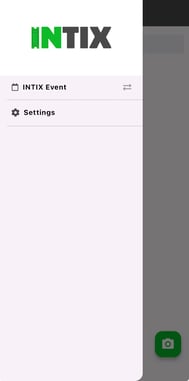
- When viewing the Attendee list, select the 3-line menu in the top left of the screen
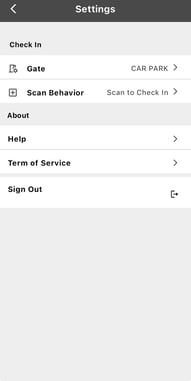
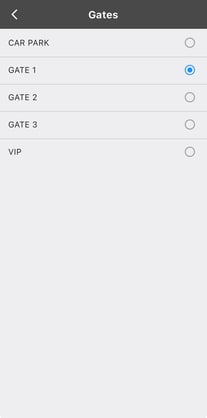
- Select Settings > Gate, select the designated gate
- Exit out of the screen by using the '<' top left of the screen, select the event title and back to the event list (this will list all live events, make sure you select the correct one)
- Using the camera icon displayed on the screen, Start scanning
Select Settings
Select Gate
Select relevant Gate
Scanning Out
This can be a useful tool for capacity management in real time. While the scanners are checking attendees into an event at the main entrance, you can also designate someone to scan people out at the exit.
NOTE: the scanning app is set to scan in OR out, not both at once - know your settings!
- Select your event
- When viewing the Attendee list, select the 3-line menu in the top left of the screen
- Select Settings > Scan Behaviour
- The default is "Scan to Check In"
- Select "Scan to Check Out"
Now when you view your Dashboard online or the INTIX Administrator app, you have up-to-date numbers of attendees onsite.
On the scanning app, you can select an attendee to see the Activity Log. This displays when they scanned in, out, and back in again.
Scanning troubleshooting
- Error: Ticket Already scanned - click name, check Activity Log for details
- *the scanning app camera is extremely sensitive, enable sound and vibrate to assist in your scanning
- Error: Wrong Gate - if extra gates have been set up, the ticket or membership type may be selected to be scanned at a different entry, check the ticket or membership title and advise of their gate entry
View your onsite attendance Live
-
Download the INTIX Admin App or;
-
Log in to your INTIX account online and view your event's Dashboard > Attendance
Attendance Reporting
An exportable report available via Reports> Event Report > Attendance, export - here you will see an overview of exactly who/how many people have entered through each gate.
Questions? Email help@intix.com