
NOTE: This tool is for sending event-specific emails to attendees only.
Use Email Campaigns to send marketing emails to your full contact list.
For more information about INTIX automated emails please see our help article to avoid sending duplicates.
This article outlines:
Login to INTIX:
AU - intix.com.au
NZ - intix.co.nz
UK - intix.co.uk
US - intix.com
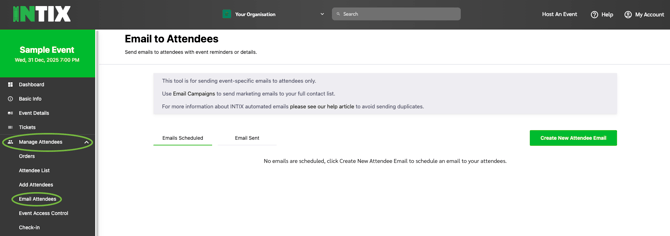
1. Go to Manage Attendees > Email Attendees
2. Select Create New Attendee Email
3. Compose and Preview attendee email
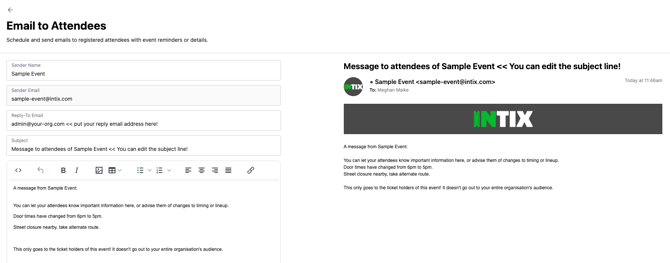
You can let your attendees know important information here, or advise them of any important updates, changes to timing or lineup. (example: Door times have changed from 6pm to 5pm. Street closure nearby, take alternate route.)
4. Send test email, make edits if required - see Edit Email
5. When you're ready, click "Send Campaign" -OR-
Schedule Send:
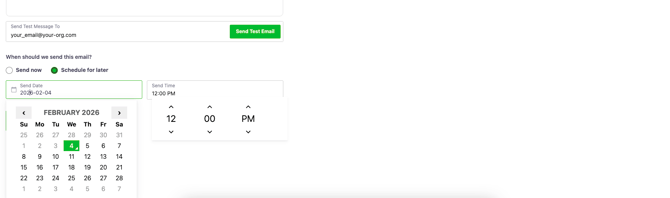
1. Select Schedule Send
2. Select date and time to send the email automatically
Edit Email or Cancel Schedule Send:
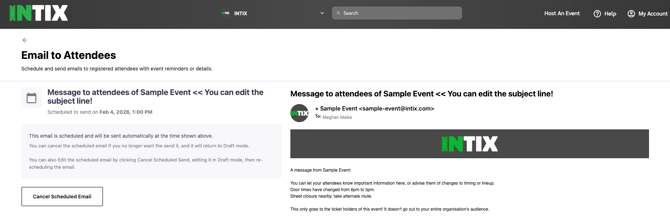
Edit: You can edit the scheduled email by clicking Cancel Scheduled Send, editing it in Draft mode, then re-scheduling the email.
Cancel: You can cancel the scheduled email if you no longer want the send it, and it will return to Draft mode.
Sent Emails - Stats, View, Copy:
-
Stats: See the number of successfully delivered emails or bounced emails
- View: the sent email
- Copy: a sent email as a new draft and edit as needed
Questions? Email your Account Executive or help@intix.com.