
First step is to create your seating map: refer to this article
Once your reserved seating map has been created, you can then create your reserved seating events.
This article refers to creating an Event - Reserved Seating: does not include members/season tickets
- Log in > Host An Event > Create Event
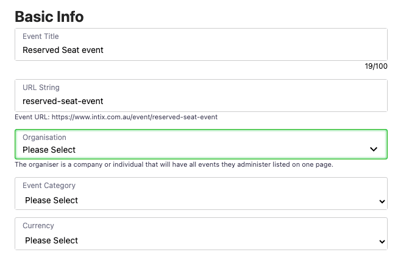
- Fill out Basic Info for your event (Title, venue, date, time etc)
- *At this stage you can manipulate the URL string
- Save & Continue
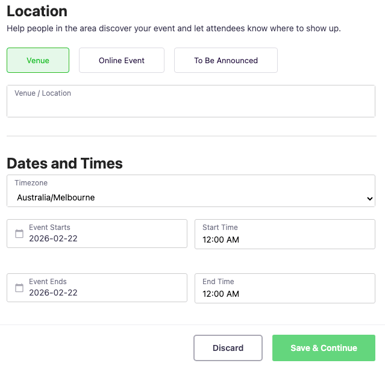
For this purpose, we will skip the next step, Event Details and move onto Tickets.
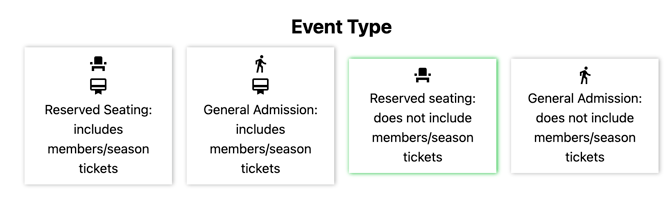
When selecting your Event Type you have the options to select the following:
-
Reserved Seating, does not include members/season tickets
-
Reserved Seating: includes members/season tickets - automatically includes all members as well as ability to sell single event tickets and general admission - refer to this article
5. Select Event Type: "Reserved Seating: does not include members/season tickets"
6. Select the current/relevant seating map
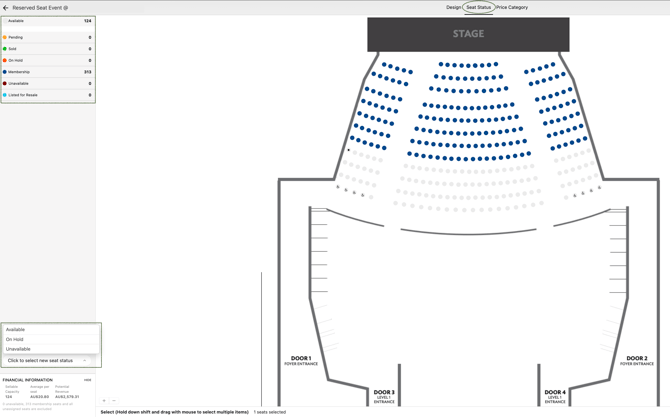
Your seat map will appear on the 'Seat Status' view as default. You will see the legend on the left identifying all seat status options and units.
Assign or Update Seat Status by selecting the seats and selecting 'Update Seat Status' choosing Available, On Hold, Unavailable.
What is Seat Status?
-
Available: is a seat has originally been assigned as On Hold or Unavailable, you are able to update the status and assign it as Available
-
On Hold: selecting seats and assigning them On Hold allows you to allocate tickets in the back-end of your system while the public are not able to select them.
-
Unavailable: an Unavailable seat is one that is intentionally blocked from being sold or booked in your system.
7. Price Category, add price options and create new categories
-
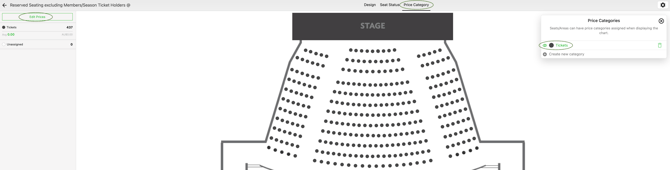
While in Tickets, choose Price Category from the top menu banner
-
Click 'Edit Prices', select the default "Tickets". You are able to re-name it to suit your event, ie. " Reserved Seating", "VIP', "A Reserve", "B Reserve", "C Reserve" etc
- Select 'Add New Price'
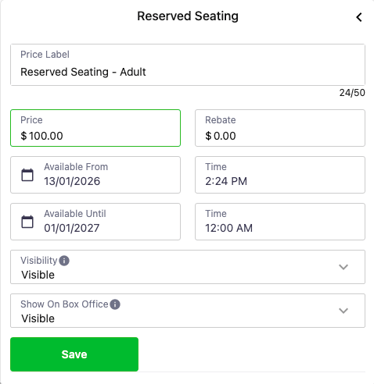
- Enter the Price label ie. "Reserved Seating - Adult"
- enter price
- enter Available from and until dates (these dates default to your event dates)
- enter Available from and until time (these times default to your event times)
- select visibility
- select 'Show on Box Office'
- SAVE
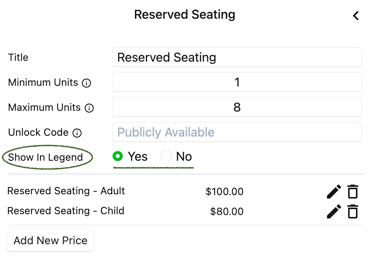
- Once Saved, select 'Yes' or 'No' to Show in Legend.
- Select 'Add New Price' for all remaining price options under the category (ie. Concession, Child, Family)
Family/Group configurations must be completed by a member of the INTIX team, so please notify your Account Executive. If you create a new Family/Group price option in an existing event, ensure it is configured correctly to generate the appropriate number of tickets for the customer and to require selection of the correct quantity of allocated seats. Once configured in the first event, these settings will carry over to subsequent event when duplicating. This is for reserved seating events only.
Creating Price Options within a Price Category
Show in Legend
Create New Category
-
While in Tickets, choose Price Category from the top menu banner
-
Click 'Edit Prices', select Create New Category, enter Price Category title ie. " Reserved Seating", "VIP', "A Reserve", "B Reserve", "C Reserve" etc
- Select the '+' symbol or press 'Enter' on your keyboard
- Select 'Add New Price'
- Enter the Price label ie. "A Reserve - Adult"
- enter price
- enter Available from and until dates (these dates default to your event dates)
- enter Available from and until time (these times default to your event times)
- select visibility
- select 'Show on Box Office'
- SAVE
- Once Saved, select 'Yes' or 'No' to Show in Legend.
- Select 'Add New Price' for all remaining price options under the category (ie. Concession, Child, Family)
- Repeat the process to create all Price Categories and price options
Family/Group configurations must be completed by a member of the INTIX team, so please notify your Account Executive. If you create a new Family/Group price option in an existing event, ensure it is configured correctly to generate the appropriate number of tickets for the customer and to require selection of the correct quantity of allocated seats. Once configured in the first event, these settings will carry over to subsequent event when duplicating. This is for reserved seating events only.
Create New Price Category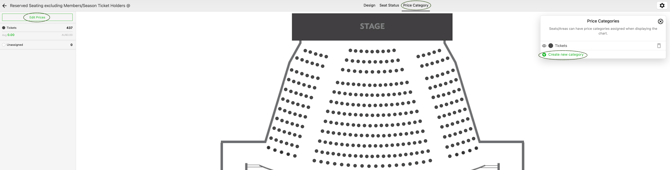
8. Optional: Change colour of seats to visually identify different Price Categories
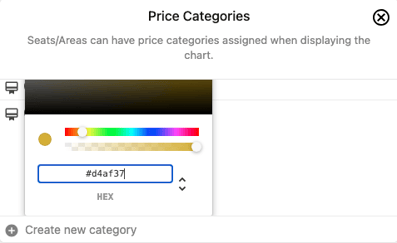
To customise seat colours, click on the dot next to the price category and enter your preferred HEX code. Use the dropdown arrows to select and enter RGB code if preferred.
Now you are ready to allocate the price categories to all of the seats.
9. Allocate Price Category to reserved seats
- While in Event > Tickets > Price Category
- Select seats, multiple seats/areas - hold down the shift key and drag using the mouse
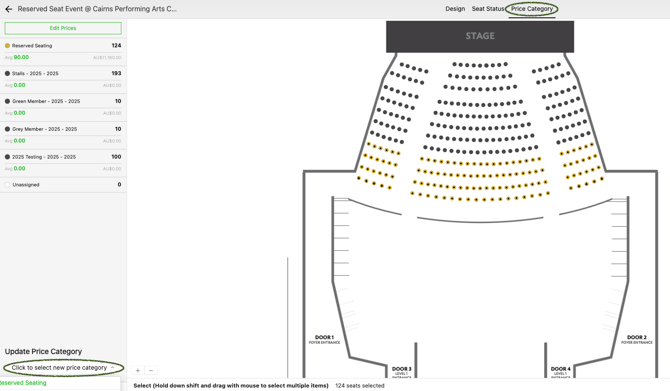
- Select Update Price Category > select relevant price category allocating to selected seats
- Repeat step 2 & 3 to allocate all reserved seat Price Categories
The example below shows all Single Event Reserved Seats in HEX colour Gold and the remaining seats in dark grey are assigned to Membership Categories which were assigned within the Membership/Season Tickets > Seat Map.
Password-protecting single event seats
- You may want to offer an exclusive access pre-sale with an Unlock Code
- You may want to offer the Away team the opportunity to purchase seats behind their team's bench
- While in Event > Tickets > Price Category
- Select Edit Prices
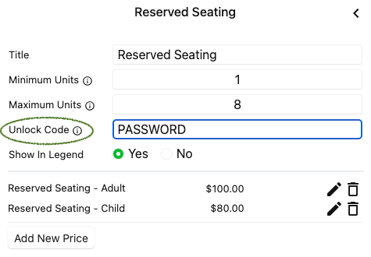
- Select the Price Category to apply the unlock code (in this case "Reserved Seating")
- Create a code of your choosing
- Select to Show in Legend
- Click anywhere to save the update
Potential Revenue
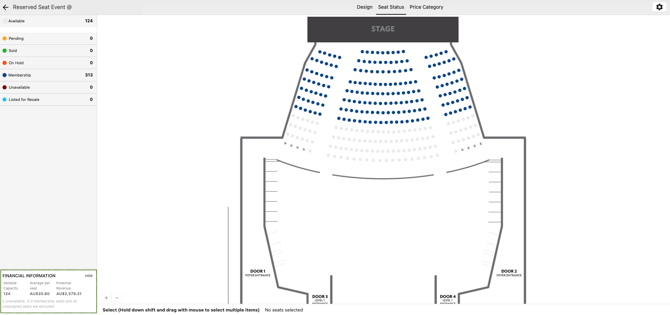
You will see a Financial Information box displayed at the bottom left of your screen which will show you potential revenue for your event according to the average prices created.
Finalise the remaining event details and any other information and you are now ready to sell tickets!
Event Details
-
Event Information
-
Event Banner image
Add Ons
-
collect donations or sell merchandise
- refer to this article
Manage Attendees > Event Access Control
-
Control which ticket types can enter through certain gates.
- If left unselected, tickets will not be able to be scanned
Order Options > Order Form
-
Custom Question - refer to this article
- Check Out time limit
- Ticket Delivery Options
- Special Instructions
Order Options > Order Confirmation
-
Confirmation Page
After registering for your event, attendees will see your onscreen message until they navigate away from the page. You can include special instructions, sponsor imagery or other useful information here. - Email Confirmation
After registering for your event, attendees will recieve an email. You can include special instructions, sponsor imagery or other useful information here.
Order Options > Waiver
-
During purchase/registration your customers will have to agree to this waiver before proceeding.
Payment & Tax > Payment Options
-
Manage how your attendees can pay you and how you get your money.
-
- Absorb/Pass On Ticket Fees
- Absorb/Pass On Transaction Fees
- Offer Afterpay
- Offer Zip Pay
Marketing
-
Tracking Pixels - refer to this article
- Promo Codes - refer to this article
- Affiliate Marketing - refer to this article
Additional Event Info > Who's Performing
-
Including Artist Lineups displays on your Event Page cross promotes each artist/team and can help provide more information about your event as well as providing more ways to find the event on artist searches.
Additional Event Info > FAQs
-
Including FAQs in your event information is recommended because it helps answer common questions upfront, reducing customer uncertainty and support enquiries.
View Your Event in Draft Mode
You can view your event setup all the way through to checkout; however, transactions can only be completed once the event is live.
-
Go to the Dashboard
-
Scroll down to Your Links and click the Event URL
-
Publish Event - refer to this article
Copy Event
Duplicate an event to quickly create a season or series. Refer to this article
-
Go to Host an Event.
-
Select the three dots on the right-hand side of the event and click Copy Event.
-
In the pop-up, update the relevant details such as Event Title, Event Date, and Time, then click Submit.
-
Update the remaining event information, including Event Details, Event Banner Image, Order Confirmation, and Who’s Playing etc.
Note: If you do not update the event dates and times when copying the event, these details will default to those of the original event. Be sure to update the event dates and times in Basic Info and Tickets > Price Options.
Book in a meeting with your Account Executive, or email help@intix.com