
This article includes:
Seat Map Requirements
An INTIX team member will build out your venue's seat map per your specifications which can include reserved seating sections, corporate boxes, hospitality areas, etc. Every venue is unique, and we design the layout to suit your specific needs. Allow 5-7 business days depending on size and complexity of your venue. Once the seating map has been built you will then be able to create your event.
Provide the following information:
- Venue details: venue name and address
- Venue layout: architectural drawing, or document with a top view
- Section names, row labels, seat numbers (ex. Section: Gold, Row: A, Seat: 1)
- Any accessible, or restricted view seating
- Provide any logos and specify any other visual elements you’d like included on your seating map for your customers
Membership Site: While an INTIX team member is creating your seat map, you can continue building your membership site.
Reserved Seating Events: For reserved seating events, you must wait until the seating map has been created and approved before creating your event.
An example reserved Seating Map: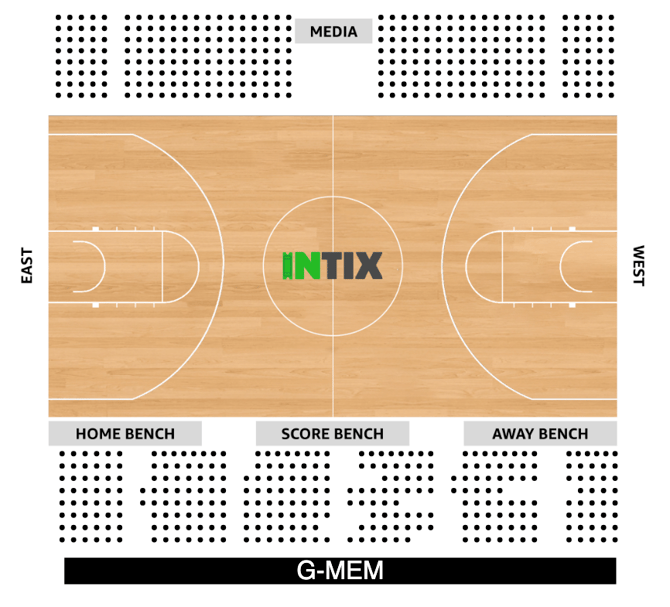
Before you copy your seat map: tidy up last season
The Confirm Copy button stays greyed out until all three steps are completed and ticked:
- Expire price options - Membership/Season Tickets > Pricing > Pricing Options. Set an expiry date on any price option that should not be sold again.
- Delete unwanted price options - same screen. Remove price options you are not offering at all next season.
- Delete unwanted categories - Membership/Season Tickets > Pricing > Member Category. Remove categories you are retiring.
Tick each step in the Copy Seating Map window as you finish it. The tick boxes are a checklist for you — they confirm you have done the work, they do not do it for you.
Why this order matters: anything left in place gets copied into the new season as a "Copy of" item, and you will have to clean it up afterwards on live memberships.
If your seat map has no seats attached, you will not see the checklist and can copy straight away.
Now you are ready to Copy Seat Map
This feature copies the seating map including all Membership Categories and Price Options from the previous season, labelling them as ‘Copy of’. Simply edit the titles, and any changes will automatically update all reserved seats allocated to that category and price option, saving you significant administrative time.
If you have no changes to your venue's seating map, use the 'Copy' function.
-
Go to Memberships/Season Tickets > Seating Map/Members Events
- Select Copy on the seating map you want to duplicate
- Enter relevant Seat Map Title referencing the current season
- Select Confirm Copy
- Under Membership Category, select Edit Details on the ‘Copy of’ category and rename each for the current season
- Under Price Option, using the pencil icon, edit 'Copy of' Price Options and rename each for the current season
- You are able to create new Membership Categories if required. Refer to this article: How to Create a Membership Category
- You are able to create new Price Options if required. Refer to this article: How to create a Membership Pricing Option
Important: If you have any changes or updates to your venues seating map, contact your INTIX Account Executive for assistance.
Questions? Email your Account Executive or help@intix.com.